



















Features
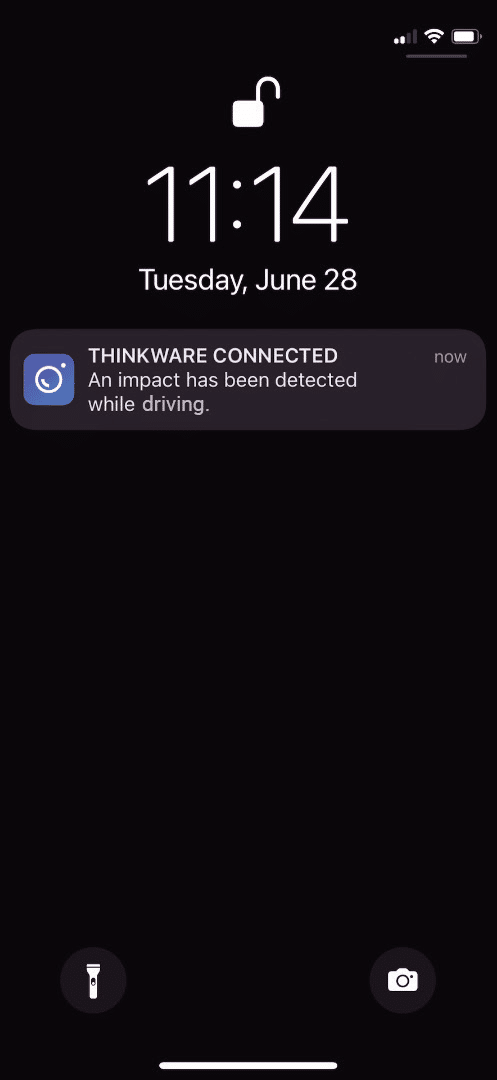
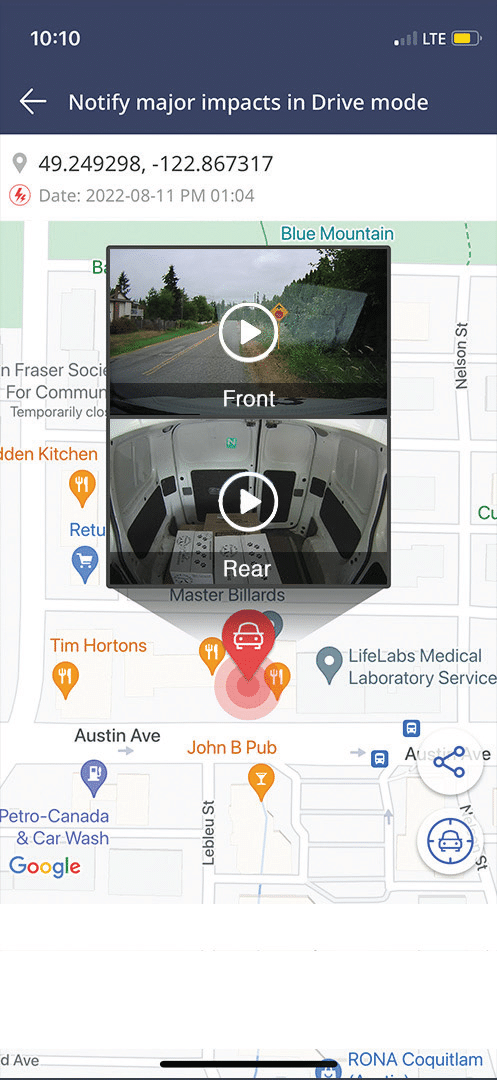
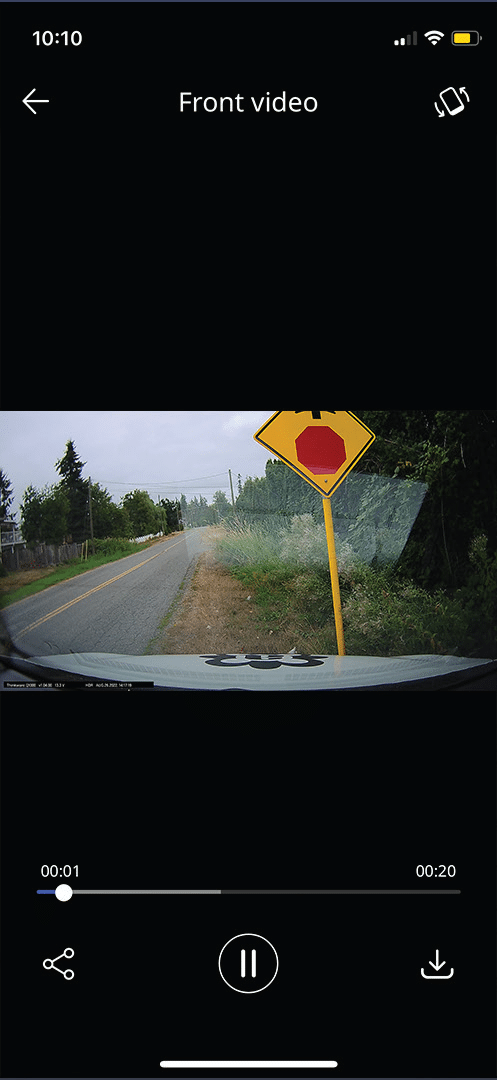
Strong Impact Notifications while Driving

Impact Notifications when Parked

Send Emergency Message

Remote Live View
Vehicle Status & Driving History

Captured Image of Most Recent Parking
Access by many means
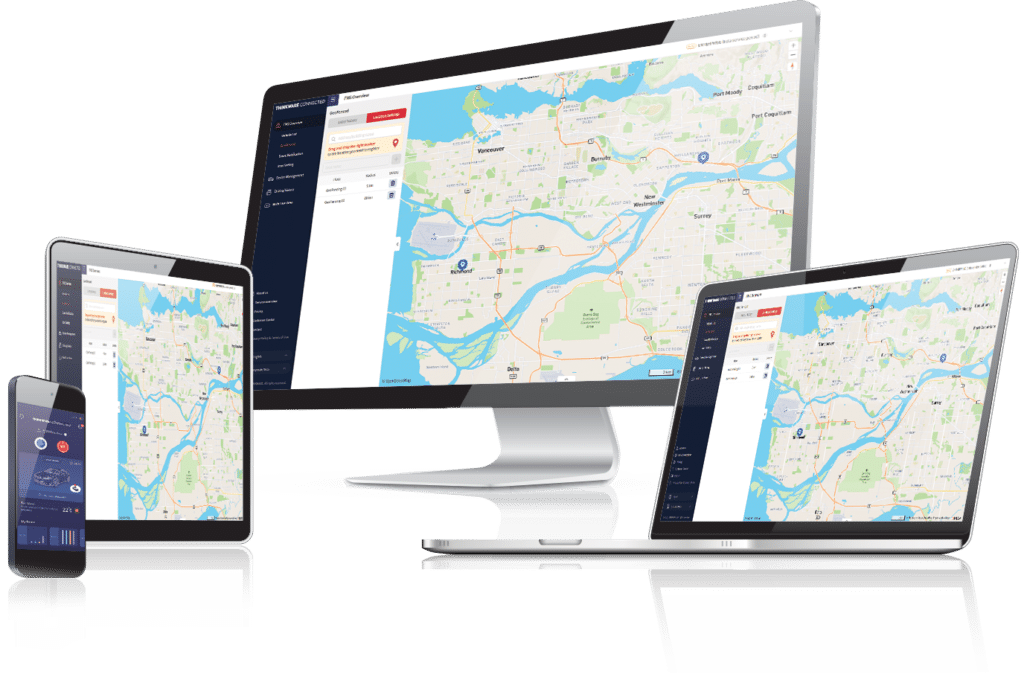
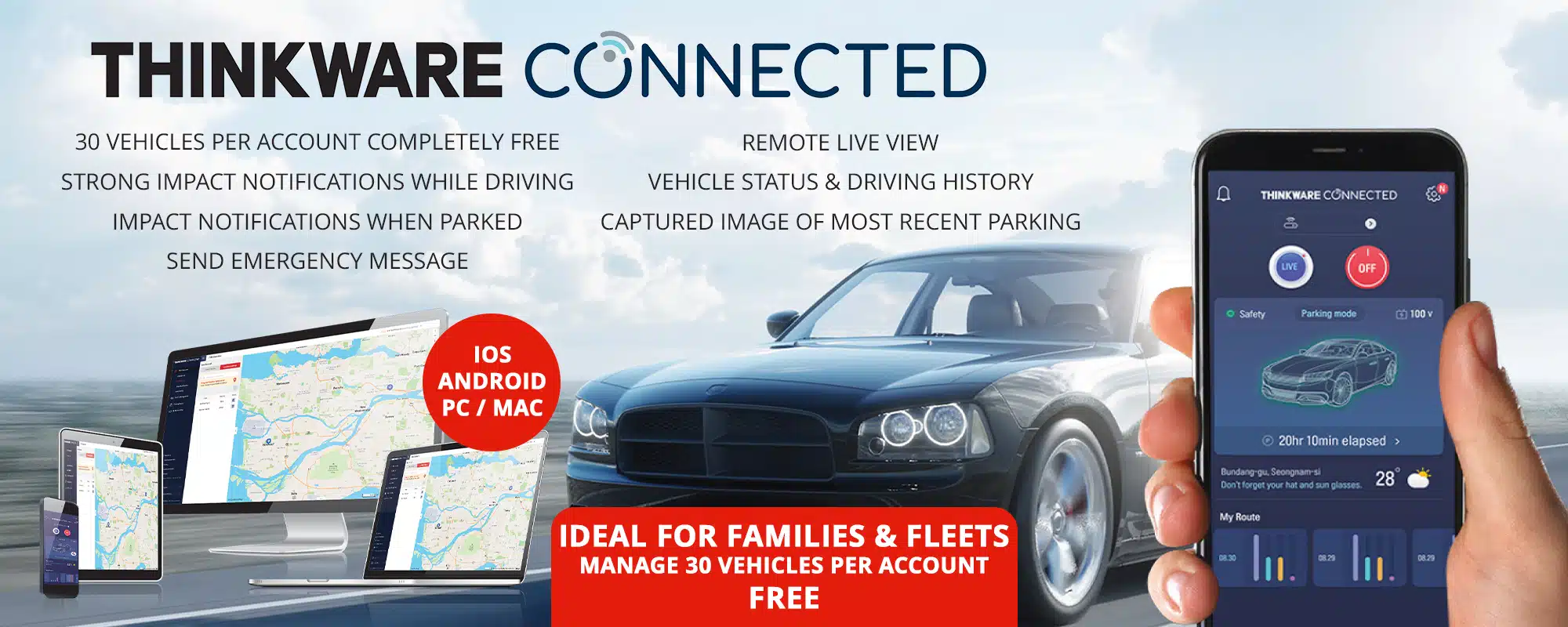
You can access the Thinkware CONNECTED on both the smartphone app as well as your mobile and desktop browser.
The dashboard on the desktop version gives a summary of the driving behavior of each vehicle linked to the account. If you are a fleet owner who needs to monitor a number of vehicles, managing the Thinkware CONNECTED features on your PC or laptop might be a more practical option.
LTE Wi-Fi Upgrade Package
Upgrade your dash cam with the LTE Wi-Fi router Pack, and unlock all the connected features of your U3000, Q1000 or Q850 dash cam.
This package the perfect solution if you do not already have a Wi-Fi connection for your dash cam.
The RUT200 is unlocked allowing you to use any network you wish, or alternatively you can choose the Thinkware Connected SIM plan that has been designed specifically for all the LTE needs of your dash cam.

This Free Service is available for a minimum of 5 years
Cloud Video Storage
Footage can be stored on the Thinkware Connected Cloud storage for up to 30 days.
Strong Impact Notifications while Driving
A serious impact stronger than 3g will trigger the Thinkware CONNECTED to show a notification on the app and send an emergency message to your registered contacts. The notification and message will contain crucial information like where the accident took place and a link to a 20-second video clip of the accident (10 seconds before and after the impact). This clip is saved on the server automatically and you can access it later as well. This feature is helpful in case of a potential major incident so your loved ones or fleet manager can take swift action.
*No new videos can be recorded while saving the 20 seconds of the first impact file.
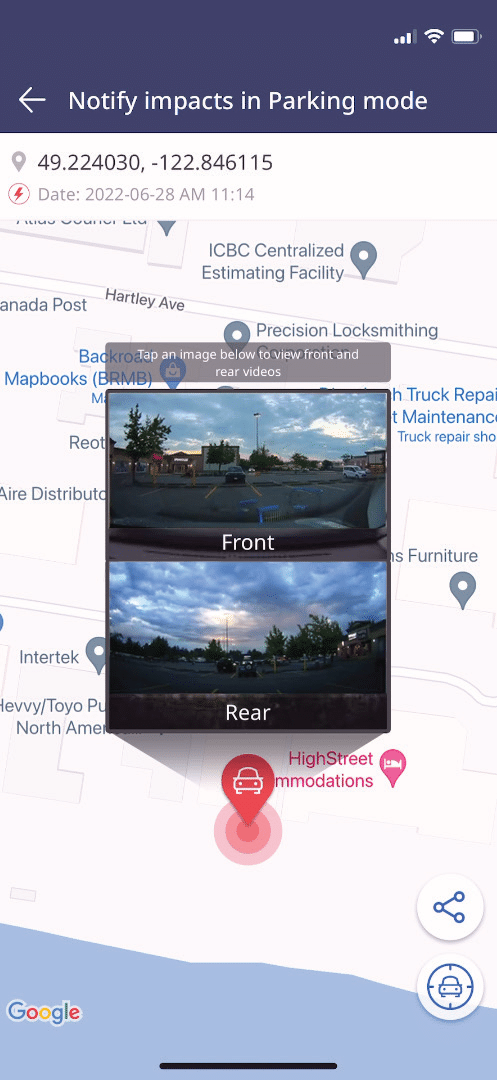
Impact Notifications when Parked
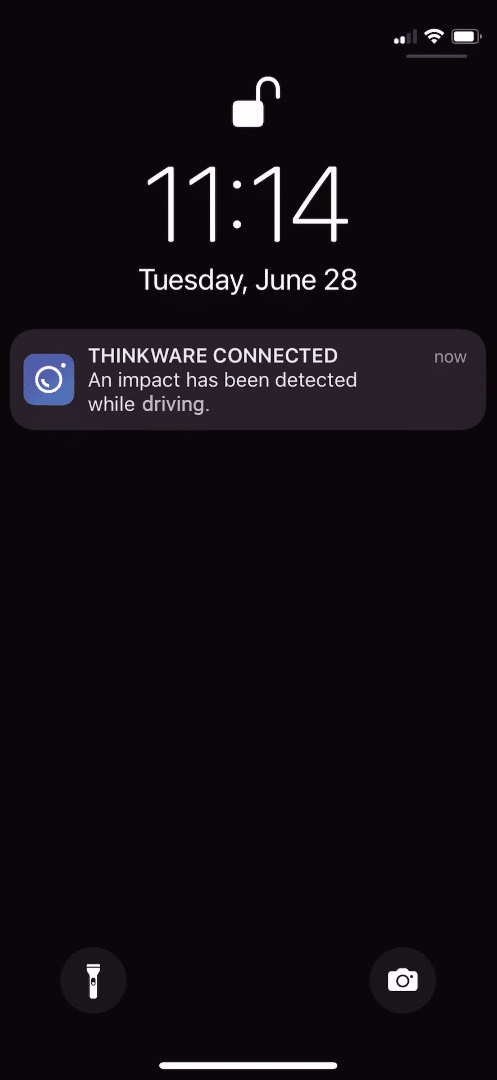
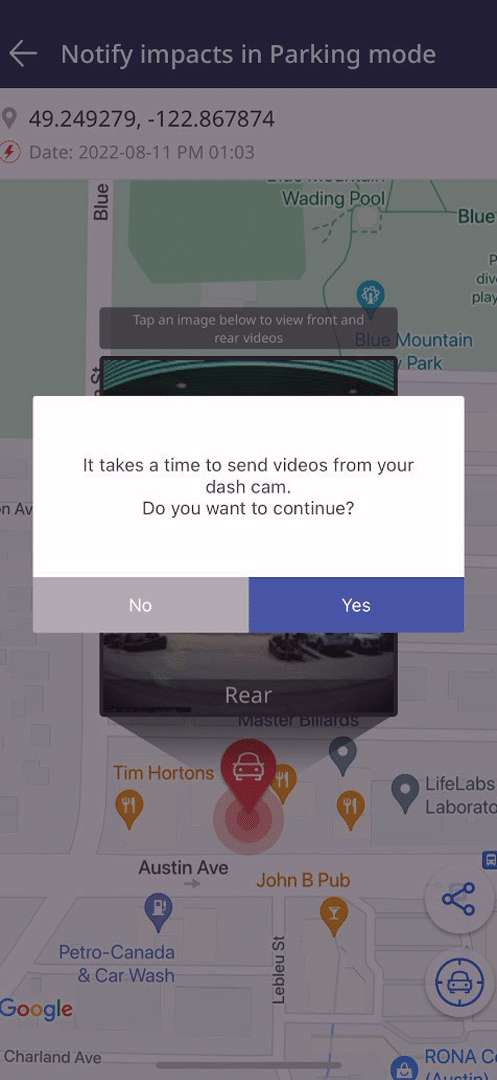
If an impact is detected while the car is parked, the app will receive a notification automatically.
An option to save a 20-second video of the incident (10 seconds before and after the incident) on the Thinkware CONNECTED server is given within the notification. This footage can be checked later from the app.
*The dash cam must have Parking Surveillance mode enabled.
Send Emergency Message
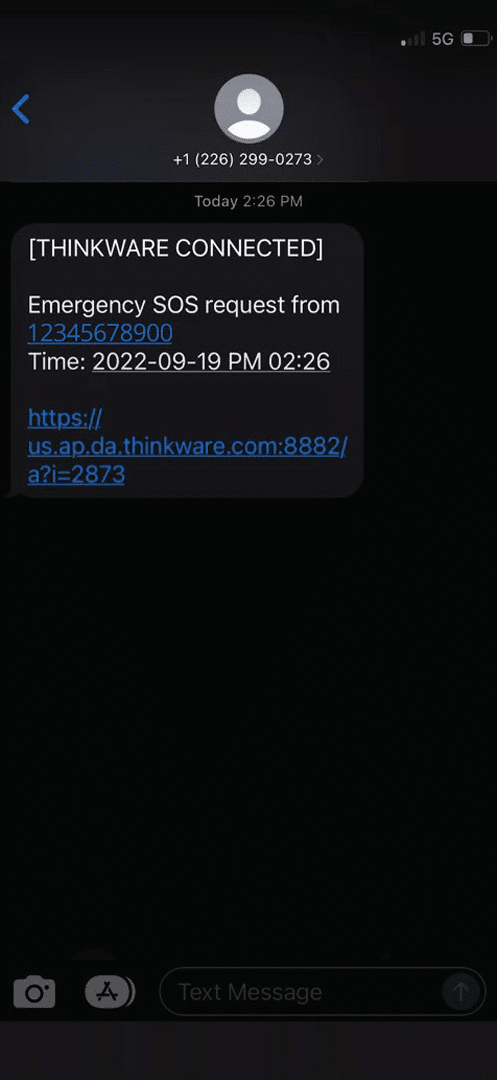
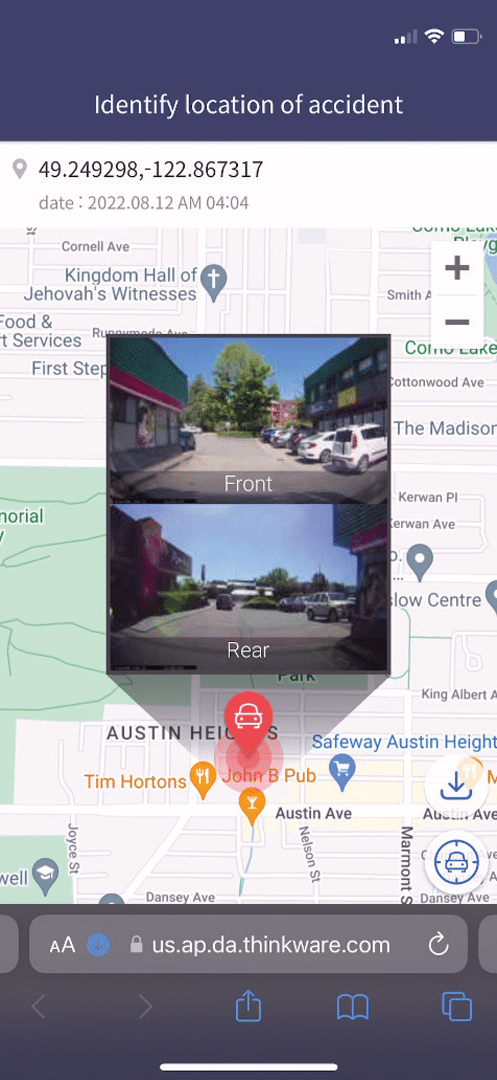
An emergency message can be sent to all registered contacts when the driver presses the REC button located on the dash cam for more than 3 seconds to request for help. In this situation, a 10-second video (5 seconds before and after the incident) will be uploaded to the server automatically. You can register the contact details of your friends, family, or associates and ensure that help will be on the way in case something happens.

Remote Live View
Thinkware CONNECTED allows you to see what the camera is viewing in real-time as well as your vehicle’s location. This will help parents, fleet managers, and vehicle owners to monitor the vehicle’s activity, no matter where they are.
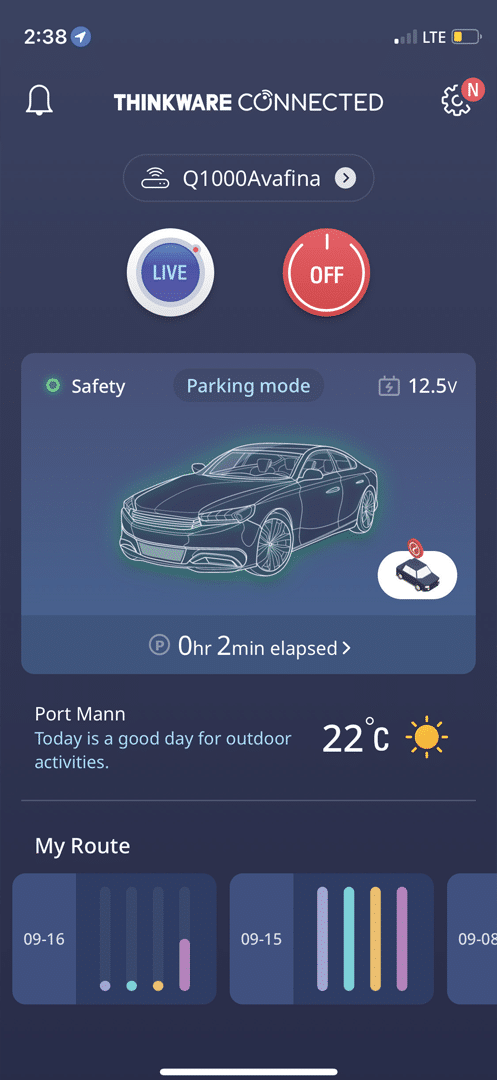
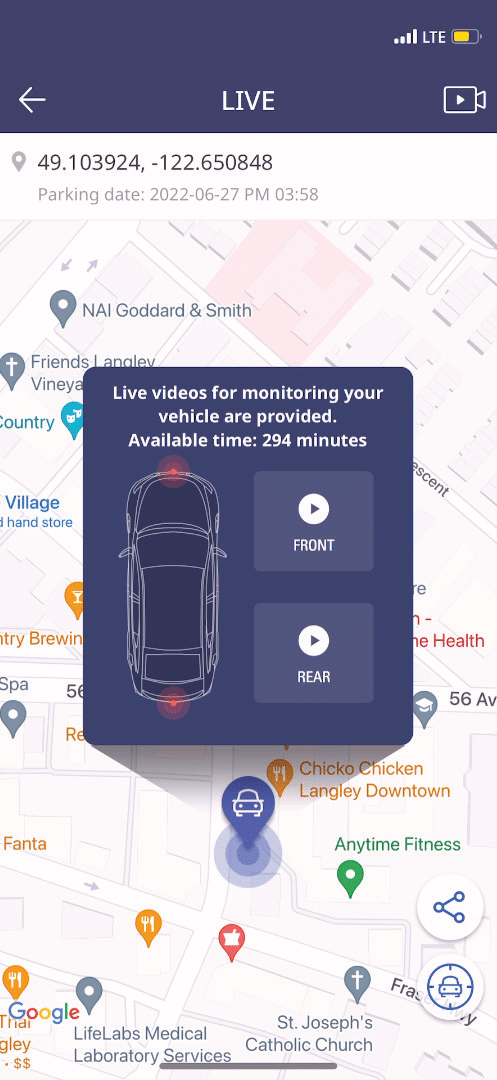
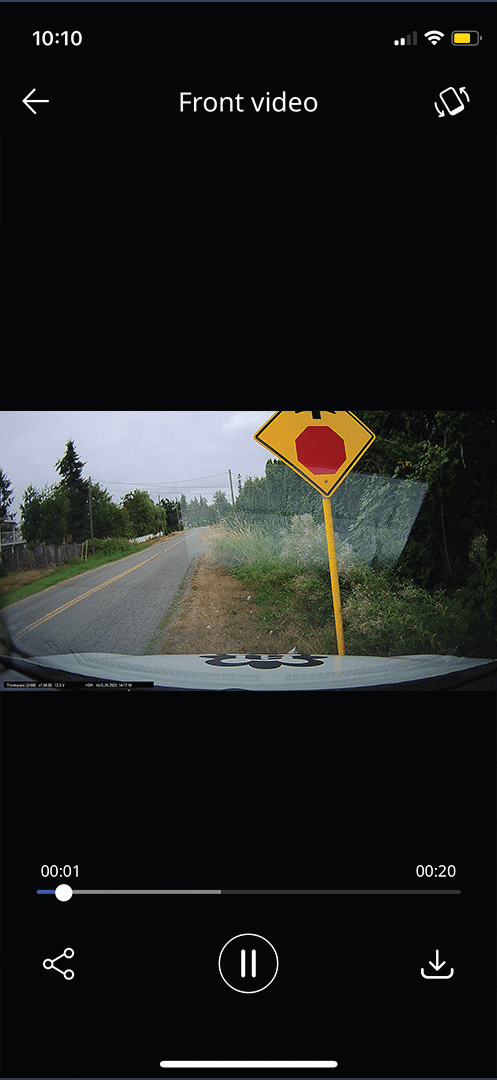
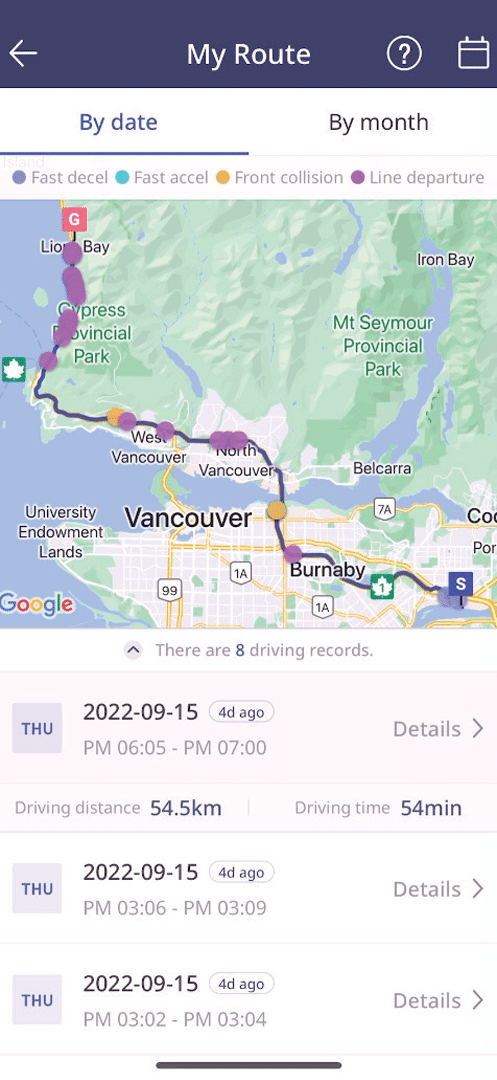
Vehicle Status & Driving History
You can find important information like whether the vehicle is parked or driving, check the battery voltage, and even turn off the dash cam remotely if the battery voltage is low, all from the Thinkware CONNECTED App. The app also allows you to view your driving history with information like date, time, distance, route, and driving behaviour.
Route Data is available for 90 days after being saved.
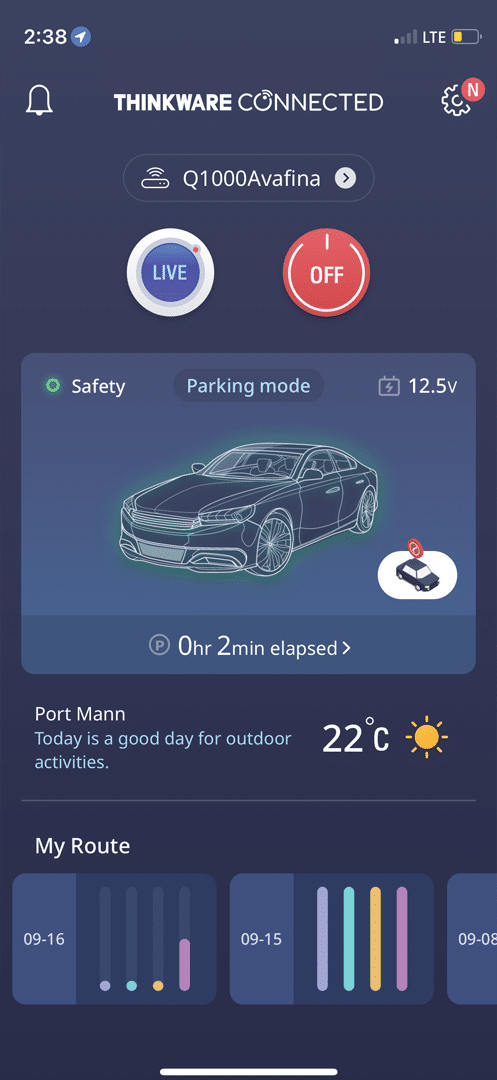

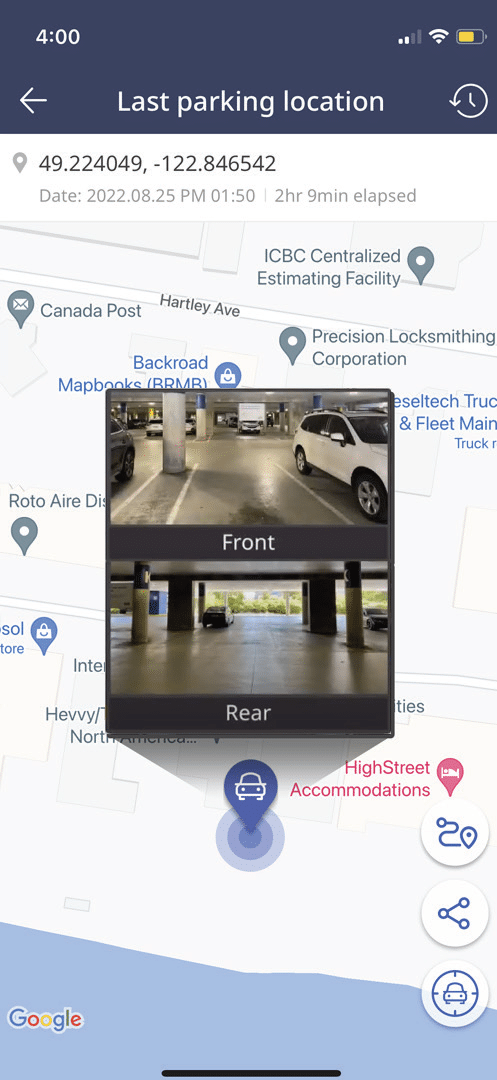
Captured Image of Most Recent Parking
With Thinkware CONNECTED, you won’t have to remember where you parked your vehicle. This feature allows you to view an image of your front and rear views of where you last parked, along with the location of the vehicle. You can also go to ‘Parking History’ to find a record of your previous Parking Captured images.
*Only available on the mobile app.


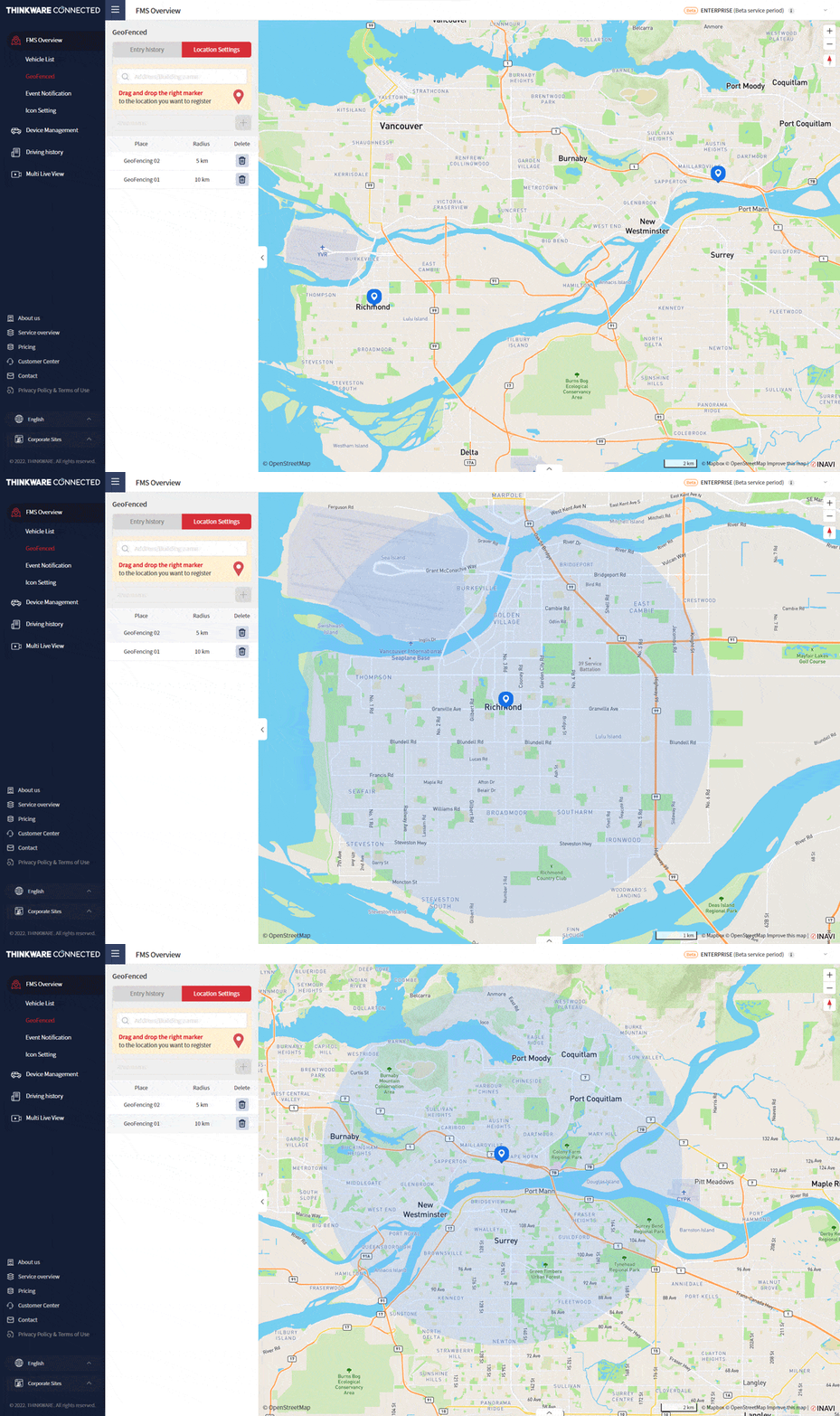
Geo-Fencing
Geo-Fencing allows parents or fleet managers to be updated on vehicles’ comings and goings. The dash cam will send a push notification through the THINKWARE CONNECTED mobile app if a vehicle enters or exits a pre-selected geographic zone. The radius of the zone can be set easily by simply tapping on the Google Maps display and selecting the desired radius, from 100m all the way up to 600km.
Please note that Geo-fencing is only available with Home and Enterprise plans.